How to Fix the Native Claude Code Installer Notification
Since version 2.1.15, Claude Code shows a deprecation notification on startup when it detects it was launched from an npm installation. The message tells you to run claude install to migrate to the native binary:
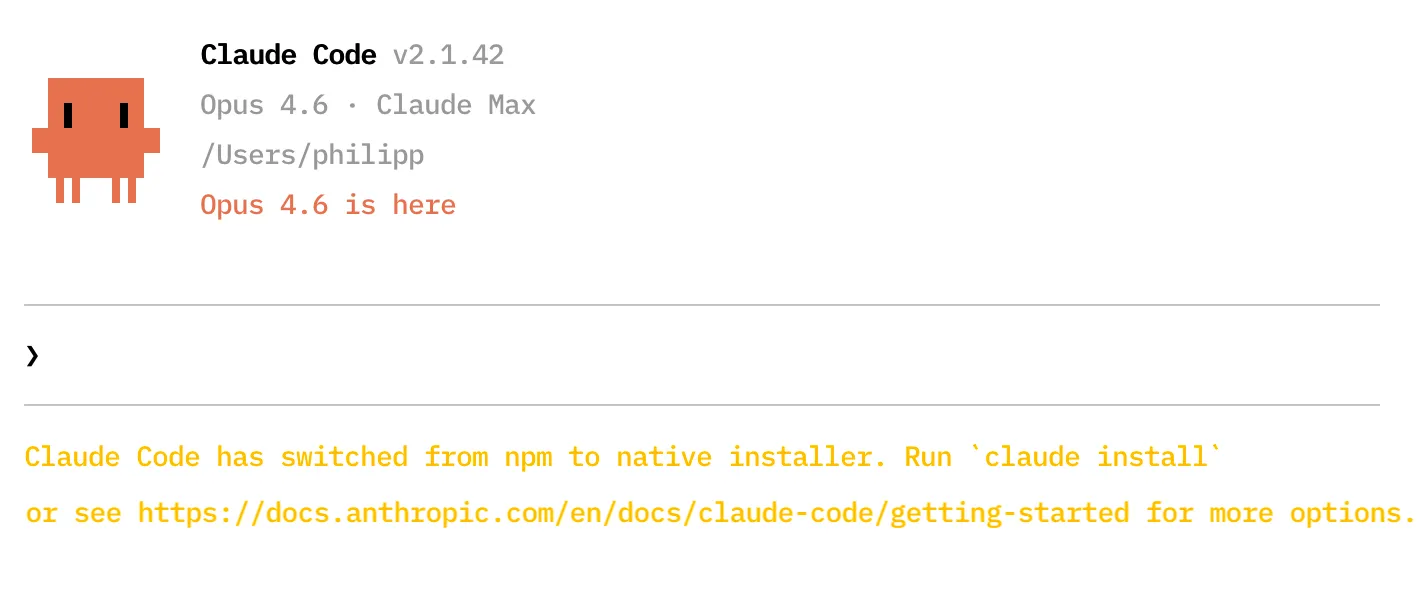
Here is the full message native installer notification that Claude Code shows on startup:
Claude Code has switched from npm to native installer. Run
claude installor see https://docs.anthropic.com/en/docs/claude-code/getting-started for more options.
Even if you follow the instructions, the notification may keep appearing every time you start Claude Code. Although claude install places a new binary on your system, it can happen that your shell keeps resolving the old npm-installed binary first.
This post covers what changed in Claude Code’s distribution, why former npm users hit this conflict, and how to resolve it on macOS. If you want, you can jump to the section with the suggested fix right away.
Anthropic’s Shift to a Native Installer
In late 2025, Anthropic moved Claude Code away from npm distribution to a native binary installer. Before this change, the standard installation method was npm install -g @anthropic-ai/claude-code. The native installer replaced that npm command with a self-contained executable.
Ideally, the native installer change brings three advantages to Claude Code:
- No Node.js dependency
- Faster startup
- A built-in auto-updater
You can still install the Claude Code npm package, but there may come a point in the future where Anthropic doesn’t release Claude Code on npm. At the moment, Claude Code actively prompts npm users to migrate.
Unfortunately, the migration message appears on Claude Code’s startup even when you actually seemingly did migrate already.
How You End Up with Two Claude Code Binaries
When you follow the installation instructions of the native installer, then you can verify that the installation was succesfull by checking for the claude binary file at ~/.local/bin/claude with the file command:
$ file ~/.local/bin/claude
~/.local/bin/claude: Mach-O 64-bit executable arm64
If the binary doesn’t exist at this location, then you’ll get a message that says “No such file or directory”. If so, then you need to follow Anthripic’s Claude Code Installation Guide again.
While the native Claude Code installer correctly installs the Claude Code binary on your system, the installer doesn’t remove old claude packages that you installed with npm install.
Here is what a typical conflict looks like on macOS where the claude command wrongly points to the node_modules/ folder.
$ which claude
/Users/philipp/.nvm/versions/node/v24.4.1/bin/claude
The old npm installation, typically managed through nvm or a global Node.js setup, doesn’t live in ~/.local/bin/claude but somewhere else entirely, often deep inside your Node version directory. Although hidden, your system may find the npm package first, the reason for this is how your shell resolves the claude command.
Your shell uses the $PATH environment variable to decide which binary to run when you type claude. It walks through the directories in $PATH from left to right and uses the first match. On most macOS setups with nvm, the nvm path appears before ~/.local/bin, so the npm-installed version wins every time.
Fixing It: Remove the npm Installation
The cleanest fix is removing the deprecated npm package so only the native binary remains. Ensure that you close all Claude Code sessions and then run the two commands below:
$ npm uninstall -g @anthropic-ai/claude-code
...
removed 3 packages in 269ms
$ rehash
THe npm uninstall -g command removes an npm package entirely from your system. The rehash command tells the shell to forget its cached lookup table and scan $PATH fresh. Without this step, the shell may still try to run the old npm path even after the package is gone.
Next, run the which command again to check if claude points to the correct binary:
$ which claude
~/.local/bin/claude
Alternatively, you can also ensure the path is available by adding this line to your ~/.zshrc:
export PATH="$HOME/.local/bin:$PATH"After sourcing the profile or opening a new terminal, which claude should point to the native binary. Launch Claude Code and the notification should be gone.
The persistent “Run claude install” notification targets npm installations specifically. If you installed Claude Code with npm install -g @anthropic-ai/claude-code before the switch to native distribution, the old npm binary is likely shadowing the native one on your PATH. The fix in most cases is npm uninstall -g @anthropic-ai/claude-code followed by rehash. which claude is the diagnostic that tells you which binary is actually running.